Most event websites are calm until they are suddenly not. One announcement goes out, ticket sales open, a newsletter lands, or a performer shares the link — and the quiet road becomes rush hour.
That is when every weak spot becomes visible: slow pages, overloaded hosting, checkout delays, seat reservation conflicts, payment timeouts, and frustrated buyers refreshing the page instead of completing the purchase.
Short version: prepare your event site before ticket sales peak by using strong hosting, smart caching, lean plugins, tested checkout flows, live monitoring, and a realistic check-in strategy.
If you sell tickets with Tickera, your goal is simple: keep the road wide enough, the traffic lights timed properly, and the checkout lane clear when demand arrives.
What Causes Rush Hour on an Event Site?
An online traffic jam happens when too many visitors ask your website to do too many dynamic things at once. Ticket sales are not the same as reading a blog post. Each buyer may create a cart session, reserve tickets, choose seats, enter attendee details, start payment, and wait for confirmation.
If you are using Seating Charts, the site may also need to reserve seats in real time so two people do not buy the same place. That is valuable functionality, but it also means your site needs enough resources to handle the work.
| Pressure point | What can happen |
| Slow hosting | Pages load slowly or checkout times out |
| Too many plugins | Extra scripts and database work slow the site |
| Poor caching setup | Static pages stay slow or dynamic pages show stale data |
| Seat reservations | Real-time inventory needs more server reliability |
| Payment gateway delays | Buyers abandon carts or retry orders |
Use Smart Caching, Not Blind Caching
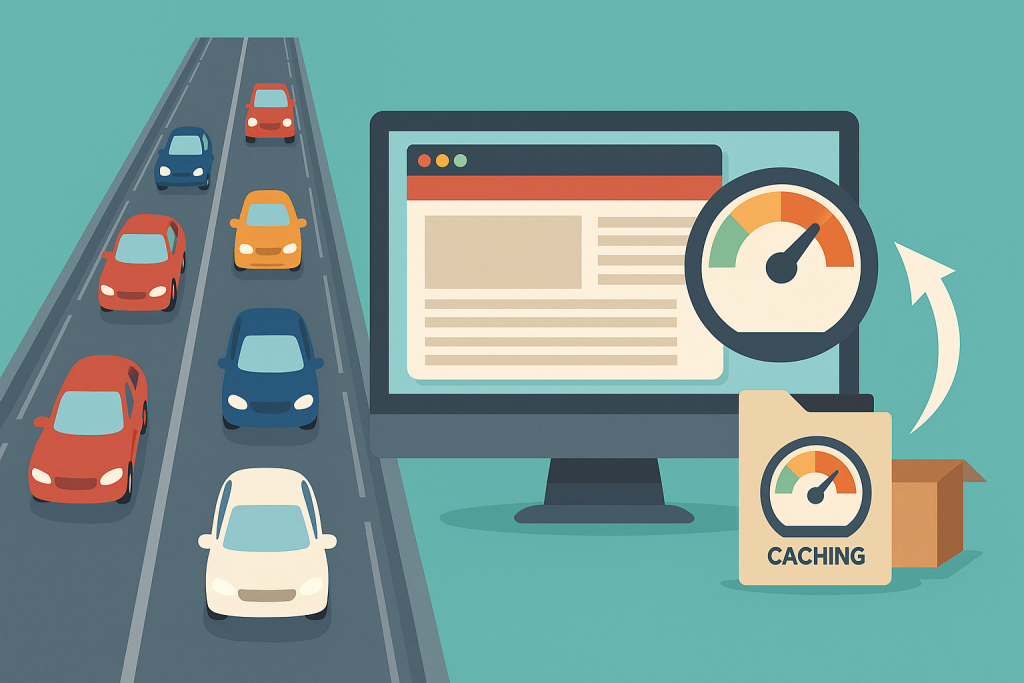
Caching is like synchronized traffic lights. When it is configured well, it keeps visitors moving quickly by serving ready-made versions of pages instead of rebuilding everything from scratch.
But caching everything is not the answer. Cart, checkout, account, ticket selection, and seating chart pages often need live data. If those pages are cached incorrectly, buyers may see outdated ticket availability or run into confusing checkout behavior.
Cache This, Exclude That
| Usually safe to cache | Usually exclude from cache |
| Homepage | Cart |
| Event information pages | Checkout |
| Blog posts | My account / user-specific pages |
| Static landing page sections | Seat selection and live inventory flows |
Choose Hosting That Matches the Sales Moment
Even perfect caching cannot save hosting that is too small for the moment. If you expect hundreds or thousands of people to arrive at the same time, your hosting needs to be ready before the announcement goes live.
Shared hosting may be fine for a small event site with steady traffic. It is not ideal for a major ticket drop. A VPS, cloud server, or quality managed WordPress host gives your site more room to handle simultaneous visitors, database activity, and checkout requests.
Do not upgrade hosting after the queue forms. Widen the road before rush hour starts.
Keep Plugins and Themes Lean
Every plugin adds something: scripts, styles, database calls, admin logic, frontend behavior, or third-party requests. Some are necessary. Some are not. During a ticket sales rush, unnecessary weight becomes expensive.
Before a major launch, review the site with a simple question: does this plugin or feature help visitors buy tickets, understand the event, or trust the page? If not, consider disabling it, replacing it, or moving it away from the critical sales path.
Plan for Check-In Traffic Too
Ticket sales are only one rush hour. The second one happens at the door.
When staff scan tickets with Checkinera, each online scan can communicate with your site to validate the ticket and mark it as checked in. For small events, this is usually easy. For larger events with multiple gates and heavy arrival waves, the check-in workflow needs planning.

Offline scanning can work well for smaller setups, especially with one entrance. For large events with multiple devices and gates, online scanning is usually safer because ticket status updates instantly across all devices. Otherwise, the same ticket may be accepted more than once before devices sync.
Monitor the Site Like Traffic Cameras
You cannot fix what you do not see. Monitoring tools such as UptimeRobot or Pingdom can alert you when the site slows down or becomes unavailable.
Monitoring is especially useful around predictable traffic spikes: ticket launch time, early-bird deadlines, announcement emails, performer posts, and event-day check-in windows.
- Monitor uptime during launch windows.
- Watch checkout and payment completion rates.
- Check server resource usage if your host provides it.
- Keep support contacts ready before the sale starts.
Do Not Rebuild the Road During Rush Hour
If your event goes viral, congratulations — but do not panic-change the site while buyers are active. Installing new plugins, switching themes, rebuilding checkout, or changing payment settings during peak sales can create more problems than it solves.
If tickets sell out or capacity changes, communicate clearly. Add visible messages, update the event page, and avoid making risky technical changes until the surge passes.

Run a Rehearsal Before the Ticket Drop
Cities test intersections. Event teams should test ticket flows.
A few days before ticket sales open, ask teammates or friends to visit the site at the same time. Have them choose tickets, go through cart and checkout, test coupons if you use them, and report anything confusing or slow.
Pre-Launch Test Checklist
- Open the event page from mobile and desktop.
- Add tickets to cart and complete a test checkout.
- Test seat selection if Seating Charts is used.
- Confirm confirmation emails and ticket delivery.
- Scan sample tickets with Checkinera.
- Check monitoring alerts and hosting dashboard access.
For event-day entrance planning, this guide on maximizing the efficiency of Checkinera is a useful next step.
Learn From Every Rush Hour
After the sale or event, review what happened. Which pages slowed down? Did buyers abandon checkout? Did support receive repeated questions? Did check-in move smoothly? Were there specific times when traffic spiked?
Those answers help you improve the next launch. Rush hour is stressful, but it also reveals the most useful performance data you can get.
Event Site Rush Hour Checklist
- Use hosting that matches the expected ticket demand.
- Cache static pages, but exclude cart, checkout, and live inventory pages.
- Remove unnecessary plugins from the critical sales path.
- Test checkout before the announcement goes live.
- Prepare a clear sold-out or waitlist message.
- Monitor uptime and checkout behavior during launch.
- Plan check-in devices, gates, and online/offline scanning strategy.
- Review data after the rush and improve the next setup.
Final Thoughts
Traffic jams are frustrating on the road and even worse at checkout. But most event-site rush hour problems can be reduced with preparation: better hosting, smarter caching, a leaner site, monitoring, rehearsals, and a realistic check-in plan.
The goal is not to make the site fancy during peak demand. The goal is to make it dependable. When buyers arrive, the ticket path should feel simple, fast, and calm.
Recommended Reading
- Ticket Check-In at the Door
- How to Maximize the Efficiency of Checkinera
- Small Ticketing Decisions That Quietly Hurt Event Margins
FAQ
How do I handle a rush of attendees at check-in?
Add entry lanes and staff, use fast QR or barcode scanning with an offline fallback, and where possible stagger arrivals so the busiest moment does not overwhelm a single gate.
How do I prepare my site for a ticket-sale rush?
Use caching, a CDN, and scalable hosting so your site stays fast when traffic spikes the moment tickets go on sale, and test it under load beforehand.
What causes bottlenecks during peak times?
Too few check-in points, an unreliable network, untested devices, and a site that cannot handle traffic surges. Planning capacity for the peak, not the average, prevents most of them.