Long lines can ruin the first impression of an otherwise well-planned event. Attendees arrive excited, then spend the first part of the experience waiting, refreshing emails, searching for tickets, or asking staff which entrance they should use.
That is exactly where Checkinera helps. The mobile and web check-in tools let your team scan tickets quickly, validate entries in real time, and keep multiple gates moving without turning the entrance into a bottleneck.
Short version: use multiple gates, assign devices by entrance or ticket type, test syncing before doors open, train staff on edge cases, and make sure attendees know where to go before they reach the scanner.
Why Check-In Speed Matters
Check-in is one of the few moments every attendee experiences. If it is smooth, people barely notice it. If it is slow, confusing, or inconsistent, it affects the mood before the event even begins.
Fast check-in is not just about scanning quickly. It is about planning the whole entrance flow: gates, staff, devices, signage, ticket types, internet access, and backup procedures.
Use Multiple Gates to Spread the Load
The biggest efficiency win is simple: do not send everyone through one line if your venue can support more than one entry point.
Multiple gates help you spread arrivals across staff and devices. You can separate VIPs, general admission, staff, media, vendors, or reserved seating sections. This keeps lines shorter and makes it easier for each team member to understand who they are checking in.
| Gate setup | Best for | Why it helps |
|---|---|---|
| VIP gate | VIP, sponsors, speakers, premium tickets | Protects the premium attendee experience. |
| General admission gates | High-volume ticket types | Spreads the largest crowd across several scanners. |
| Support desk | Missing tickets, name issues, payment questions | Keeps problem-solving out of the main line. |
| Staff/vendor entrance | Internal arrivals | Prevents operational traffic from mixing with attendees. |
Assign Devices With a Clear Purpose
Checkinera works on iOS, Android, and through the web app, which gives your team flexibility. But flexibility works best when every device has a clear job.
- Assign each scanner to a specific gate or ticket type.
- Label devices so staff know which entrance they belong to.
- Use mobile devices for moving lines, outdoor queues, or overflow areas.
- Use the web app for a fixed support desk or box office station.
- Keep chargers, power banks, and spare devices ready.
Test Syncing Before Doors Open
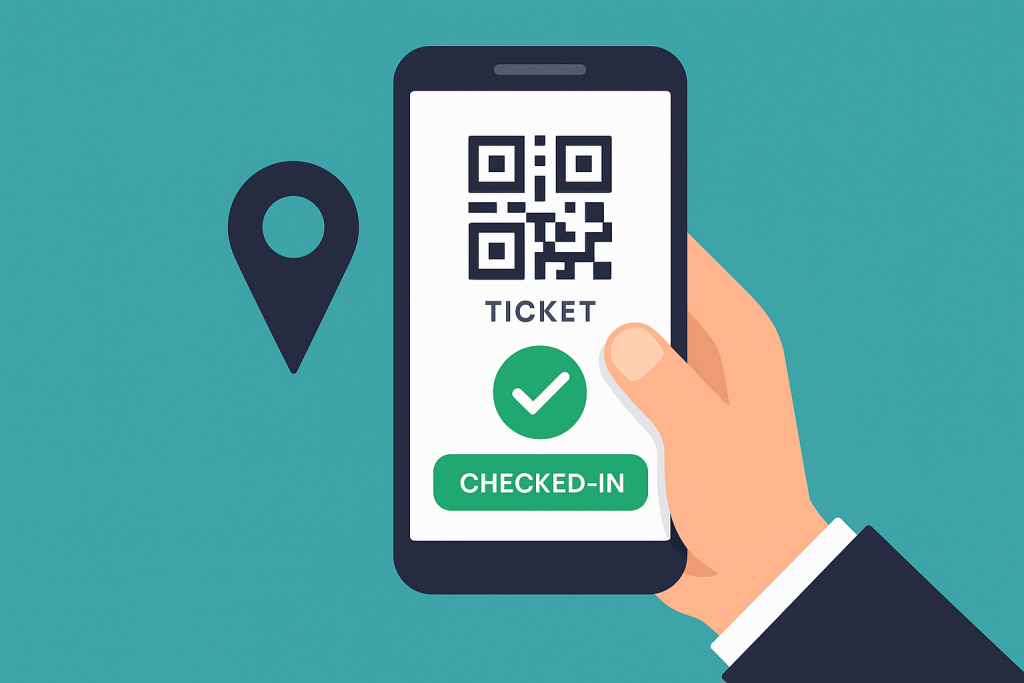
Both the Checkinera mobile app and Checkinera web app are designed to keep ticket status in sync, so a ticket checked in at one gate cannot be reused somewhere else. That real-time coordination is what prevents duplicate entries and messy manual lists.
Do not wait until the crowd arrives to test it. Before doors open, scan a test ticket on one device, confirm that the status updates on another device, and make sure staff understand what a valid, already-used, or invalid ticket looks like.
Free tool — Check-in Queue Planner: Efficiency at the door starts with running the right number of lanes. Venuera’s free Check-in Queue Planner simulates your door minute by minute and tells you how many scan lanes to run, your peak queue wait, and how many guests are still outside at showtime — it runs in your browser with no sign-up. Plan your door →
Pre-Opening Checkinera Test
- Log in on every device that will be used at the entrance.
- Confirm each device has stable internet access.
- Scan a test ticket and verify status sync across devices.
- Check what staff see for duplicate, invalid, refunded, or wrong-event tickets.
- Make sure the support desk knows how to escalate unusual cases.
Train Staff on the Exceptions
Most tickets will scan normally. The stress comes from exceptions: someone cannot find their ticket, a QR code was already used, a buyer brings the wrong email, or a group arrives with one person holding all tickets.
Create a short decision tree before the event. Staff should know when to let someone through, when to send them to the support desk, and who has authority to override a problem.
- Ticket not found: send attendee to support desk for order lookup.
- Already checked in: verify identity before making any exception.
- Wrong ticket type: direct attendee to the correct entrance or support desk.
- Group arrival: confirm whether the buyer has multiple tickets attached to one order.
Use Communication to Reduce Line Problems
Many check-in delays start before attendees reach the entrance. If people do not know which gate to use, where their ticket is, or when doors open, your scanners become the first place they ask for help.
Send a reminder before the event with ticket instructions, entrance details, parking notes, and arrival timing. This connects check-in efficiency with broader event communication.
Checkinera Efficiency Checklist
- Estimate peak arrival volume and open enough gates for that window.
- Assign each device to a gate, ticket type, or staff role.
- Test internet, battery, login access, and sync before doors open.
- Prepare a support desk for edge cases instead of blocking main lines.
- Train staff on duplicate scans, invalid tickets, refunds, and wrong-event tickets.
- Send attendees clear arrival and ticket instructions before the event.
- Review check-in results afterward and improve the next event flow.
Frequently Asked Questions
Can I use more than one device with Checkinera?
Yes. Multiple devices can be used across different gates or staff members, which helps distribute check-in volume and reduce waiting times.
How do I prevent the same ticket from being used twice?
Use synced Checkinera devices and test the workflow before doors open. Once a ticket is checked in, other devices should show that status so the same ticket cannot be accepted again without review.
Should every entrance have a support desk?
Not always, but every large event should have a clear place for exceptions. Separating support issues from normal scanning keeps the main check-in lines moving.
Final Thoughts
Checkinera can make event entry fast and reliable, but the best results come from planning the full check-in flow. Multiple gates, clear device roles, real-time syncing, trained staff, and good attendee communication all work together.
When check-in runs smoothly, attendees start the event with confidence instead of frustration. Your team gets fewer repeated questions, lines move faster, and the first live touchpoint feels organized.