Check-in is one of the most important moments in the event experience. A ticket can sell perfectly, the confirmation email can arrive on time, and the event page can look great — but if entry is slow, confusing, or unreliable, attendees feel it immediately.
That is why Checkinera was introduced: to make ticket check-in faster, more flexible, and easier for real event teams working at real entrances.
Short version: Checkinera gives Tickera users mobile and web-based ticket check-in, including offline-capable mobile apps, real-time workflows, and a more practical scanning experience for event staff.
Why Check-In Needed a Better Workflow
Event entry is unpredictable. Internet can be weak, lines can form quickly, attendees can arrive in waves, and staff may be using different devices at different gates. A check-in tool has to handle those conditions without making the team slower.
Checkinera was built to make the scanning process more practical for teams that need speed, mobility, and reliability at the door.
Free tool — Check-in Queue Planner: Checkinera scans fast — but how many devices should you run on the door? Venuera’s free Check-in Queue Planner simulates your door minute by minute and tells you how many scan lanes to run, your peak queue wait, and how many guests are still outside at showtime — it runs in your browser with no sign-up. Plan your door →
Mobile Apps With Offline Check-In
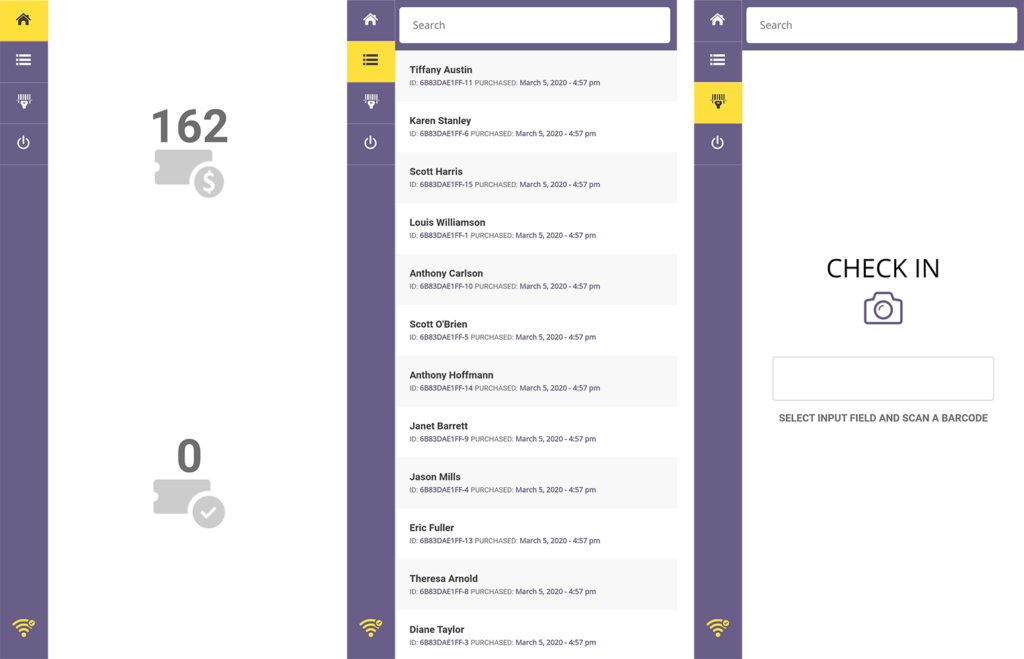
One of the biggest improvements is offline-capable mobile check-in. The mobile app can connect once to download attendee data, then continue scanning even if the device loses internet access.
This matters for venues with weak Wi-Fi, outdoor events, festivals, basements, temporary entrances, and any location where relying on perfect internet would be risky.
Web Check-In for Desks and Fixed Stations
Mobile scanning is ideal for movement, but some situations need a fixed station. Checkinera web check-in can work well for box office desks, support tables, VIP entrances, and staff with laptops or tablets.
A mixed setup is often best: mobile devices at fast-moving gates and a web station for attendee support, order lookups, and edge cases.
How Checkinera Improves Event Entry
| Feature | Why it helps |
|---|---|
| Mobile scanning | Staff can check tickets anywhere at the venue. |
| Offline capability | Reduces dependence on perfect internet. |
| Web app option | Works well for fixed check-in desks. |
| Multiple devices | Helps spread the crowd across entrances. |
| Ticket status checks | Helps prevent duplicate or invalid entries. |
Plan Your Check-In Setup Before Event Day
Checkinera gives you the tools, but the best results still come from planning. Decide how many gates you need, which staff members will scan tickets, where support issues should go, and what to do if a ticket does not scan as expected.
- Download attendee data before doors open if you expect weak internet.
- Test scanners on real devices.
- Use multiple gates for high-volume arrival windows.
- Keep a support desk separate from the main scanning line.
- Train staff on duplicate, invalid, and wrong-event ticket messages.
For a deeper operational guide, see our newer article on maximizing Checkinera efficiency at event check-in.
Checkinera Launch Checklist
- Install and configure Checkinera.
- Log in on every device you plan to use.
- Download attendee data where offline use is needed.
- Scan test tickets before doors open.
- Assign staff to gates and support roles.
- Prepare chargers, power banks, and backup devices.
- Review check-in results after the event.
Offline Check-In Still Needs Preparation
Offline capability is powerful, but it should not be treated as magic. Your team still needs to download attendee data before the event, confirm that every device has the correct event loaded, and understand what happens when internet access returns.
For best results, prepare devices while you still have a stable connection. Then test the same device in the actual entrance area if possible. A five-minute test before doors open can prevent a stressful first wave of attendees.
How to Organize Multiple Gates
Checkinera becomes even more useful when you combine it with a clear gate plan. Instead of sending everyone through one entrance, assign devices by ticket type, entrance, or attendee group.
- Use one line for general admission and another for VIP or speakers.
- Keep a separate support desk for ticket problems.
- Assign a team lead who can approve exceptions.
- Keep spare devices and power banks ready.
- Make sure signage matches the ticket types people purchased.
This is where check-in software and event operations meet. The app helps validate tickets, but the entrance layout decides how quickly people reach the scanner.
Frequently Asked Questions
Can Checkinera work offline?
Yes. The mobile app can download attendee data first and then continue scanning tickets offline, which is useful for venues with unreliable internet.
Should I use the mobile app or web app?
Use the mobile app for flexible gate scanning and the web app for fixed stations, support desks, or laptop-based check-in workflows.
Can multiple staff members check in tickets at once?
Yes. Multiple devices can help spread attendee flow across gates, but you should test the setup before doors open.
Final Thoughts
Checkinera was a major step forward for Tickera check-in because it made event entry more practical for real-world conditions: weak internet, multiple gates, mobile staff, and fast-moving lines.
Use it with a clear entrance plan, trained staff, and tested devices, and your check-in process becomes much easier to trust.